

 Editor's Desk





The I/O device error means an Input/Output Device Error. The error occurs when the operating system fails to connect to the hardware device. Several things can cause the error: outdated drivers, a lost hardware connection, incompatibility issues, or hard drive damage.
If your hard disk is damaged, these methods won’t work; you will need to replace or repair your hard disk drive. However, if the error occurs for other reasons, you can try these things to resolve it.
1. Restart Your PC
A simple restart can go a long way in fixing many software problems. If the error occurs because of the software you have installed, it can be fixed with a simple restart.
Restarting your computer before making further changes is always better. Therefore, restart your computer and then check whether the error persists.
2. Check the Hardware Connections
The Hard Disk I/O Device Error on Windows is generally caused by a disconnected cable. Another reason for the Hard Disk I/O Device Error on Windows is when a program tries to access a file that has been deleted. You need to take care of these things first to resolve the error message:
- Make sure the cables are properly connected.
- Check the cables of the internal hard drive.
- Check the USB Cable & Port where the external drive is connected.
- Roll back the recent hardware changes made to the computer.
3. Reinstall the USB drivers
Many Windows users have claimed to fix the I/O Device Errors by reinstalling the USB drivers. You should try doing so as well.
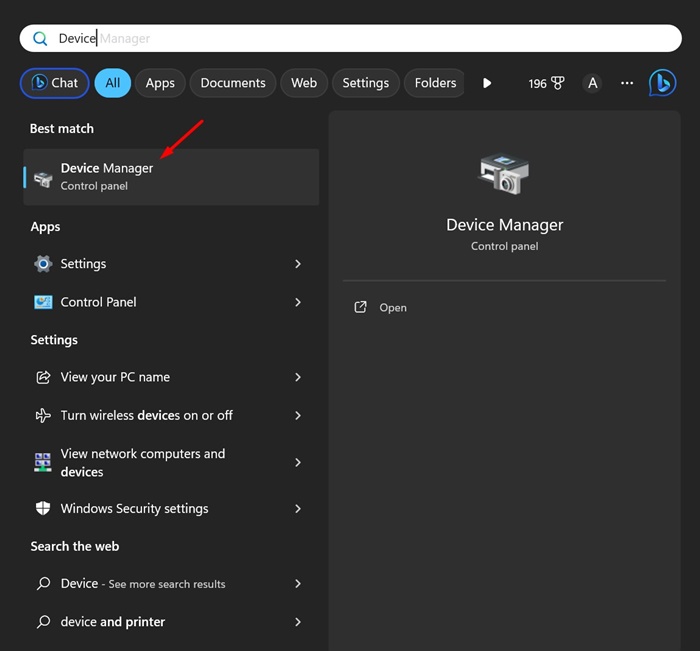
1. Open the Device Manager.
2. Expand the Universal Serial Bus Controllers
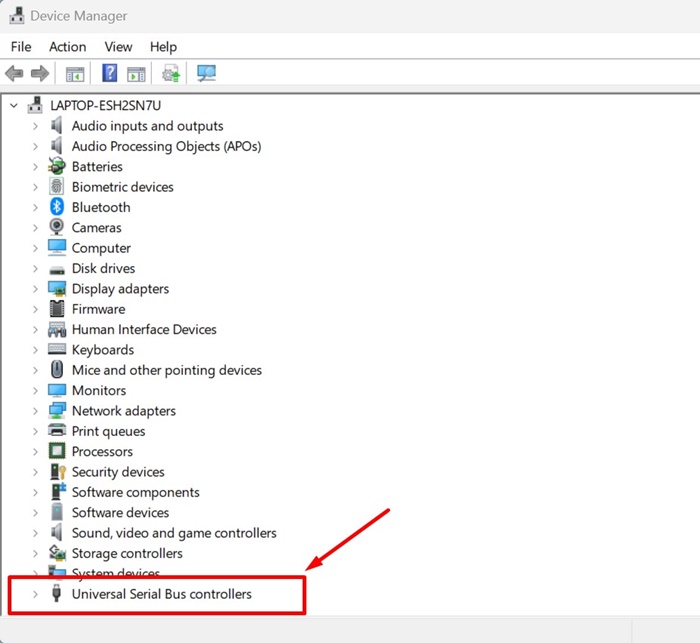
3. Right-click on the external hard drive or any USB device showing the error and select Uninstall device.
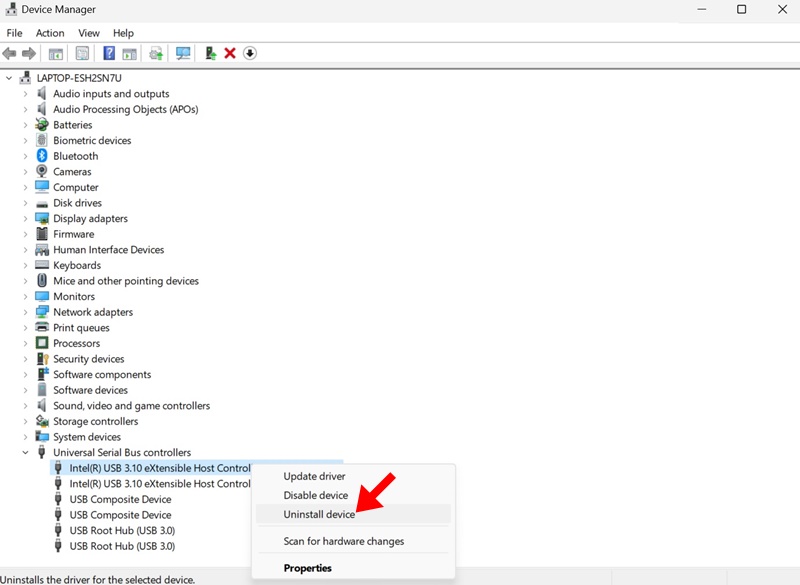
4. Once uninstalled, restart your PC.
4. Using the SFC Command
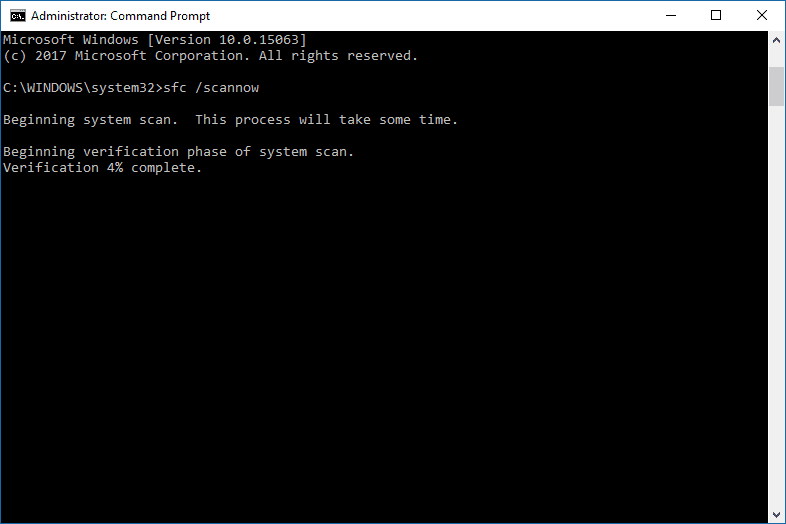
If the error is appearing due to system file corruption, you can run the SFC scan to fix the corrupted files.
- Search for CMD in the search bar.
- Right-click on Command Prompt and select Run as Administrator.
- In CMD, enter
sfc/scannow - Wait until the scanning process completes.
5. Using the Chkdsk utility
CHKDSK is a useful utility to fix I/O device errors. CHKDSK verifies the file system integrity of a volume and fixes logical file system errors.
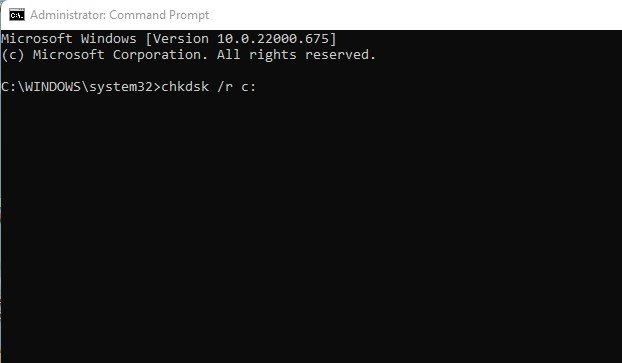
- Search for CMD in the search bar.
- Right-click on Command Prompt and select Run as Administrator.
- Type chkdsk /R /C: and press Enter. (Here, C is the drive label that is causing the problem)
- Wait until the command completes the scanning process
The ChkDsk command will identify any bad sectors and attempt recovery options.
6. Perform a Clean Boot
If nothing has worked for you until now, you can try performing a clean boot of the system. Here are the steps you need to follow.
1. Press the Windows Key + R to open the RUN dialog box. Type msconfig.msc and press Enter.
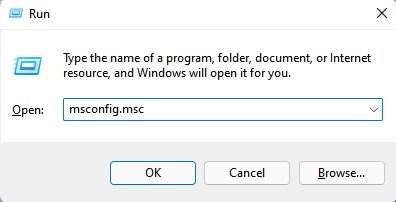
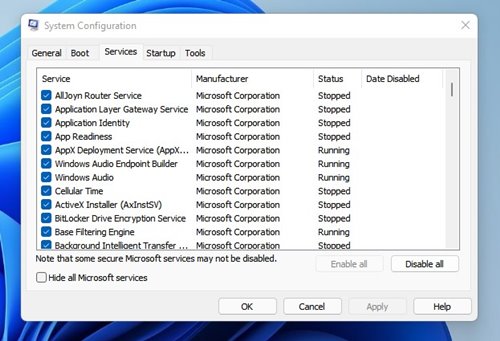
2. This will open the System Configuration panel. Switch to the Services tab.
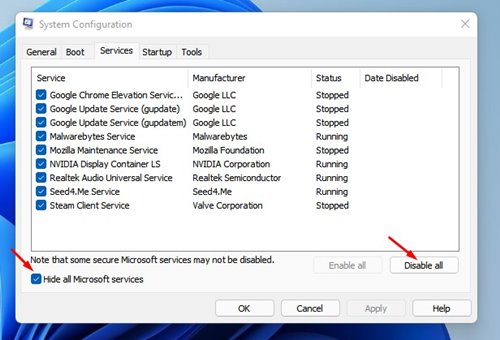
3. Check Hide all Microsoft Services and click Disable All.
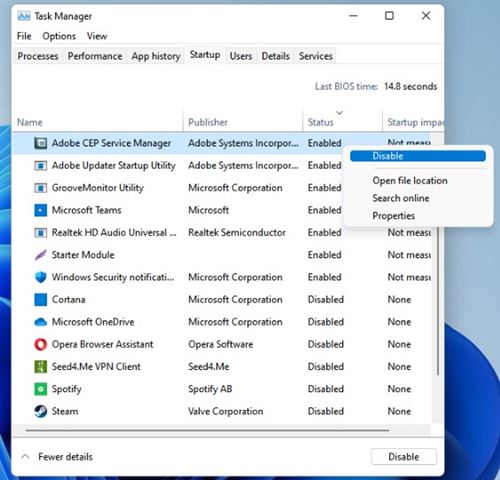
4. Now open the Task Manager and switch to Startup. Right-click on the Apps and select Disable.
7. Run the Default Error Checking Of Windows
The Windows operating system provides us with lots of troubleshooting tips. One of those is to check the hardware for errors. Running the Windows default tool to fix the I/O device error is one of the effective methods that you can try today.
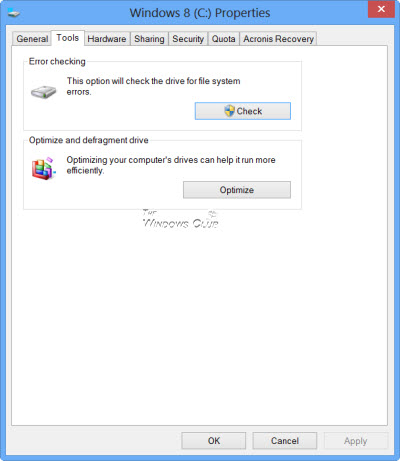
- Right-click on the drive where you get the error and select Properties.
- Locate the Tool tab and then click on the Check button
- The tool will send you a confirmation message. Click on Scan Drive to start the error-checking process
These are the best methods to fix “The request could not be performed because of an I/O device error” on your Windows computer. If you have any other doubts, then make sure to discuss them with us in the comments.
The post (Solved): How To Fix Hard Disk I/O Device Error On Windows appeared first on TechViral.

News reported through various sources and compiled with AI. This is automatically generated news content from known, popular, and reliable sources available at the time of publication.
We do not take any responsibility for, nor make any representations regarding, the accuracy, completeness, credibility, or
reliability of the content.
In case of any discrepancy, error, or copyright claim, we will promptly review and remove the content in question where appropriate.
We do not claim ownership of third-party content and assume no responsibility or liability whatsoever for any information contained herein. The credit, links and images are kept intact as an honest gesture, are property of its respective owners.