

 Editor's Desk





Many Windows users have recently reported getting a ‘No such interface supported’ error message while opening apps or services. If you also get the same error message while launching different apps, here’s what you should do.
1. Scan your computer
Malicious files can tamper with system files and app data, triggering the error message. In such a situation, scanning your computer with a powerful security tool could be effective.
We recommend using Malwarebytes or Avast free antivirus to scan your system for viruses, malware, or other security threats. Once scanned, restart your computer.
2. Run the System File Checker Utility
The error message can also appear due to system file corruption. To rule out corrupted system file issues, execute the SFC command in Command Prompt.
1. Type Command Prompt in the Windows Search.
2. Right-click on the Command Prompt and select Run as administrator.
3. When the Command Prompt opens, execute this command:
sfc /scannow
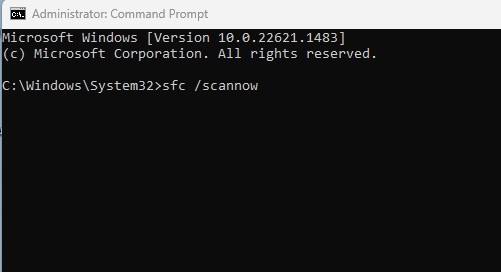
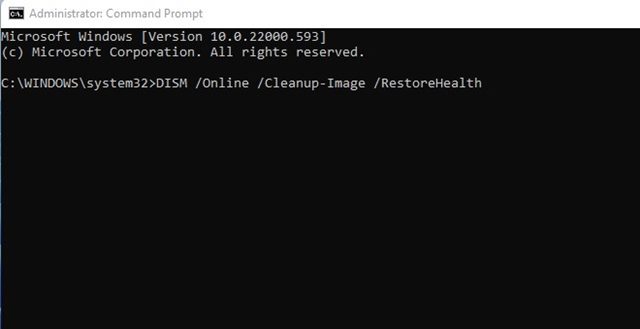
4. If the command returns an error, execute this command:
DISM /Online /Cleanup-Image /RestoreHealth
3. Re-register the actxprxy.dll
A few Windows users have reported fixing the issue by re-adding the special DLL. Here’s how you can re-register the actxprxy.dll.
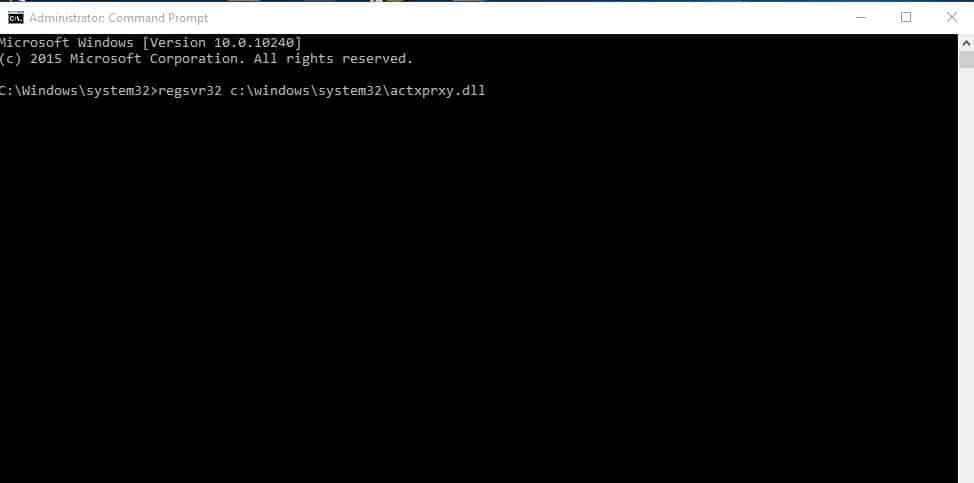
1. Open the Start Menu and search for CMD. Right-click on CMD and select Run as Administrator.
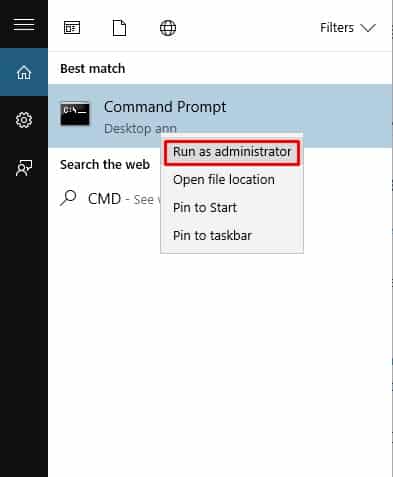
2. On the CMD, enter:
regsvr32 c:windowssystem32actxprxy.dll
4. Fix registry errors
The ‘No such interface supported’ error message also occurs due to registry errors. So, in this method, you will have to use CCleaner to fix registry errors.
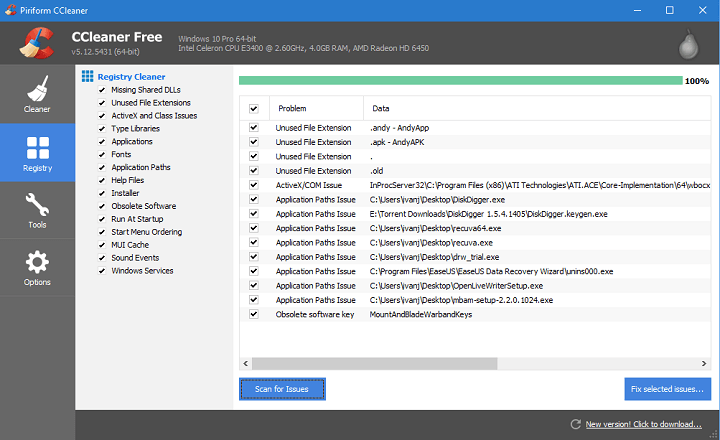
1. Download and install CCleaner on your computer. Once installed, open the app.
2. Click on the ‘Registry’ tab, which will open up the registry scanner.
3. Click ‘Scan for issues’ and wait for a few seconds until CCleaner scans for the registry errors.
4. Click on ‘Fix selected issues’
5. System Reset
A system reset will delete all files stored on the Windows installation drive and the desktop. So, create a proper backup before you reset your system.
1. Open the search box and type in ‘System Reset’. Open the Reset this PC option.
2. You will be asked to select two options. You should choose Remove Everything.
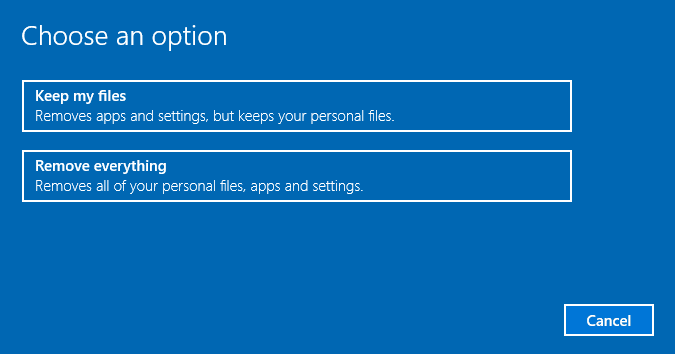
3. Wait a few minutes until the system reset completes.
These are the best methods to fix the ‘No such interface supported’ error message. Let us know in the comment box below if you know of any other way to fix the error.
The post How To Fix “No Such Interface Supported” Error Message appeared first on TechViral.

News reported through various sources and compiled with AI. This is automatically generated news content from known, popular, and reliable sources available at the time of publication.
We do not take any responsibility for, nor make any representations regarding, the accuracy, completeness, credibility, or
reliability of the content.
In case of any discrepancy, error, or copyright claim, we will promptly review and remove the content in question where appropriate.
We do not claim ownership of third-party content and assume no responsibility or liability whatsoever for any information contained herein. The credit, links and images are kept intact as an honest gesture, are property of its respective owners.