

 Editor's Desk




Sometimes, the YouTube app for Android shows a black screen whenever a video is played. If you’ve been facing the same problem and can’t get past the black screen, try this troubleshooting.
1. Relaunch the YouTube app
If you can’t see the video but can hear the audio, you need to relaunch the YouTube app. Older versions of the YouTube app had this problem; it’s possible that your phone has the same problematic app.
Relaunching the app will remove bugs & glitches that may be preventing the video from playing. So, open the App Switcher and close the YouTube app. Once closed, open it again and play the video.
2. Force Stop the YouTube app
If relaunching the YouTube app does not work, you can try force-stopping it.
1. Long-press the YouTube app icon and select App Info.
2. Tap Force Stop.

3. Once done, reopen the YouTube app on your phone and play the video.
3. Restart your Phone
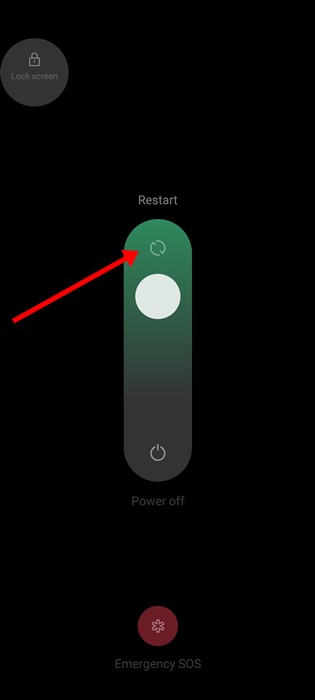
System-level bugs or glitches can also interfere with YouTube’s video playback on a phone, and a simple restart can deal with such problems. To restart your Android phone, press and hold the Power button and select Restart. After the restart, open the YouTube app and play a video.
4. Uninstall the YouTube App Updates
Since YouTube is a system app, you can’t uninstall and reinstall it. The best thing you can do is uninstall the recent app updates.
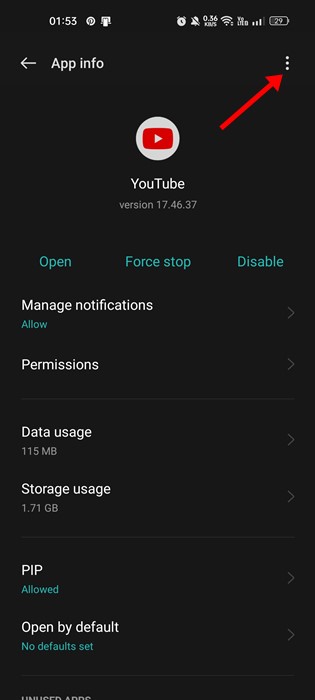
1. Long-press the YouTube app icon and select App info.

2. Tap the three dots at the top right corner.
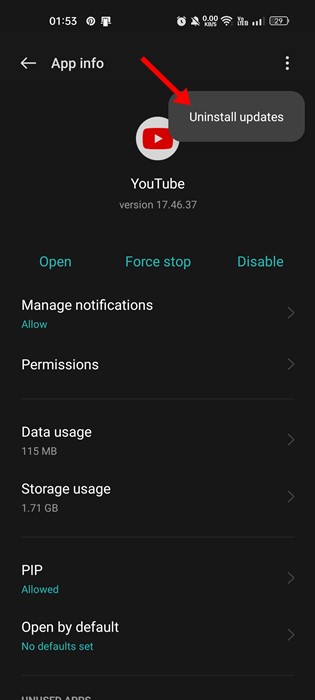
3. Select Uninstall Updates.
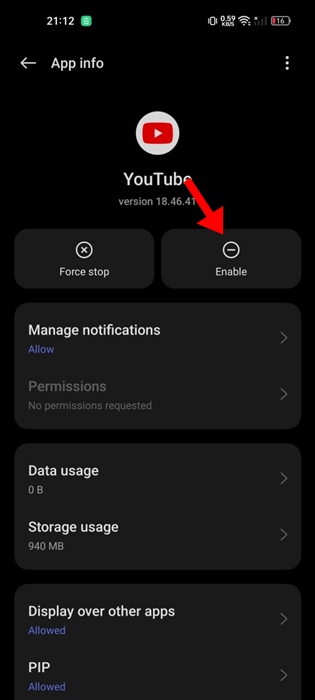
5. Disable and Re-Enable the YouTube App
If uninstalling the YouTube app updates didn’t help, you can try disabling and re-enabling the app.
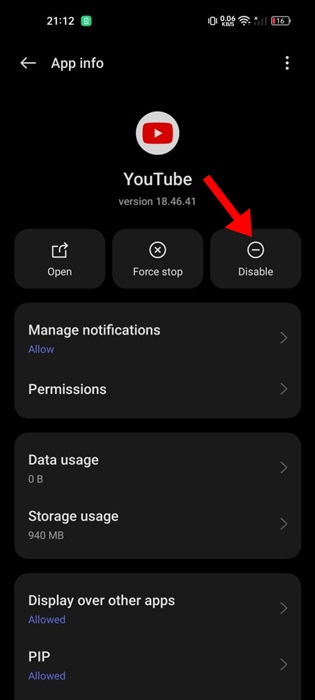
1. Long-press the YouTube app icon and tap App Info.
2. Tap Disable.
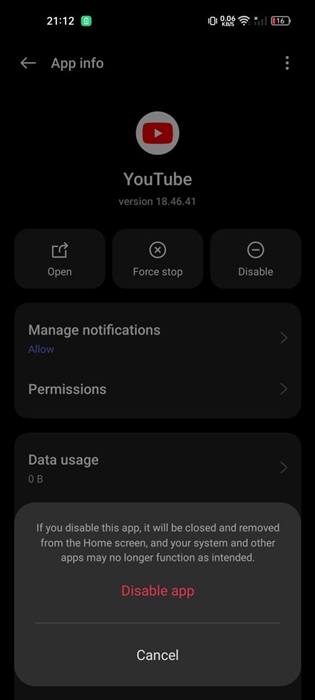
3. On the confirmation prompt, tap Disable App.
4. Wait for about a minute and tap Enable.
6. Clear the YouTube App Cache
This is the last thing you can do to resolve YouTube showing a black screen on Android. You need to do this to remove the corrupted or outdated cache files saved by the YouTube app.
1. Long-press the YouTube app icon and select App Info.
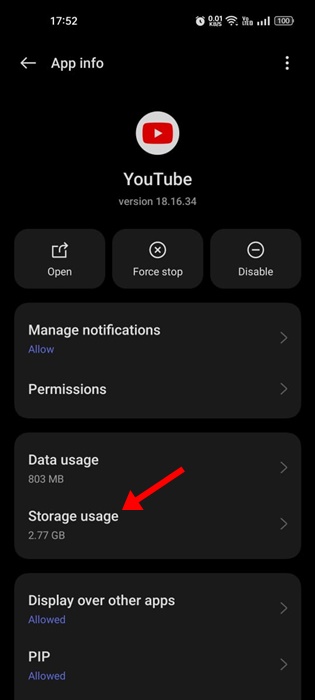
2. Select Storage Usage.
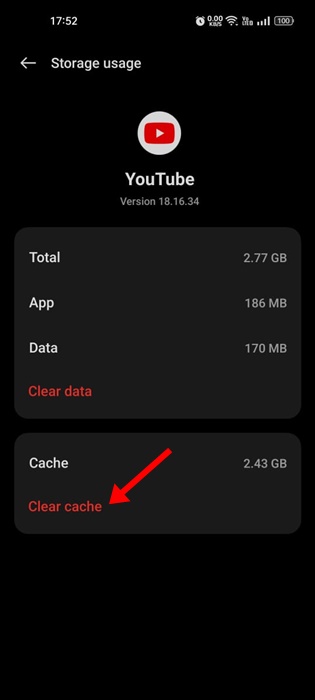
3. Select Clear Cache.
These are some general workarounds to fix the YouTube app showing the black screen issue. If you need more help on this topic, let us know in the comments.
The post 6 Ways to Fix YouTube Black Screen on Android appeared first on TechViral.

News reported through various sources and compiled with AI. This is automatically generated news content from known, popular, and reliable sources available at the time of publication.
We do not take any responsibility for, nor make any representations regarding, the accuracy, completeness, credibility, or
reliability of the content.
In case of any discrepancy, error, or copyright claim, we will promptly review and remove the content in question where appropriate.
We do not claim ownership of third-party content and assume no responsibility or liability whatsoever for any information contained herein. The credit, links and images are kept intact as an honest gesture, are property of its respective owners.