

 Editor's Desk





Removing color from a PDF file is a good option if the size is more important than color – for example, when needing to fit an email. There are various ways to convert a color PDF to Black & White; here are some of them.
1. Convert Color PDF to Black & White via Chrome browser
You can use the Chrome web browser to convert your color PDF to black & white. Here’s what you need to do.
1. Drag and drop the colored PDF file into the Chrome browser. Or else, right-click on the PDF file and select Open With > Google Chrome.
2. Click the Print button in the top-right corner.

3. Select Microsoft Print to PDF on the Destination drop-down.
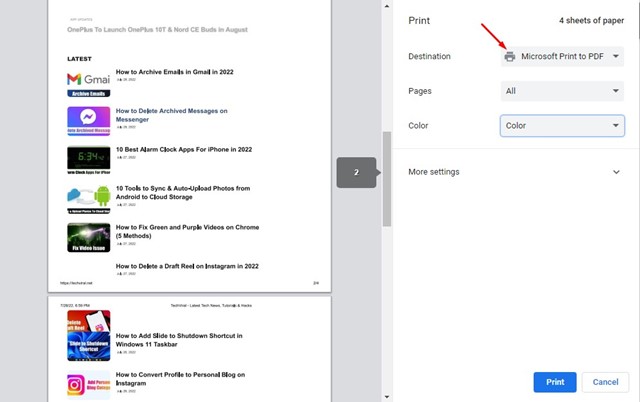
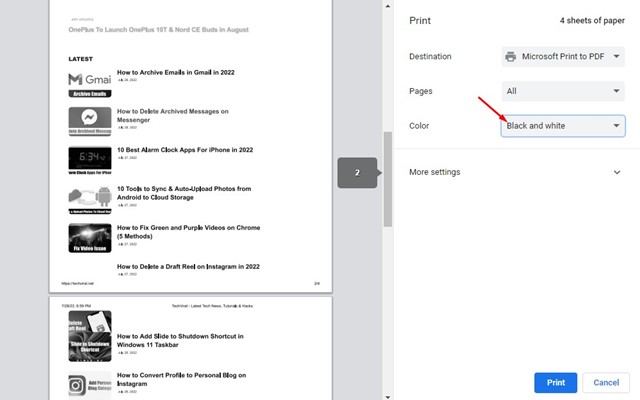
4. Click on the Color drop-down and select Black and White.
5. Click on Print.
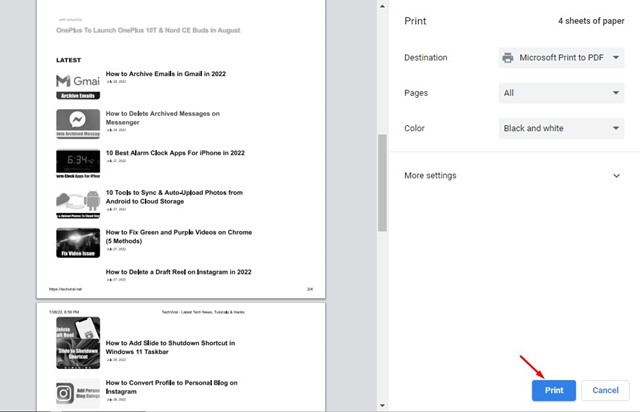
6. On the Save as dialog box, choose where to save the black & white PDF file and click the Save button.
2. Convert Colored PDF to Black & White via Web tool
You can also use web tools to convert your PDF files. Sejda is a web tool that converts colored PDFs to Grayscale.
1. Open your favorite web browser and visit this webpage.
2. Click the Upload PDF files button and select the colored PDF file.

3. For both Text and Image conversion, select Grayscale.
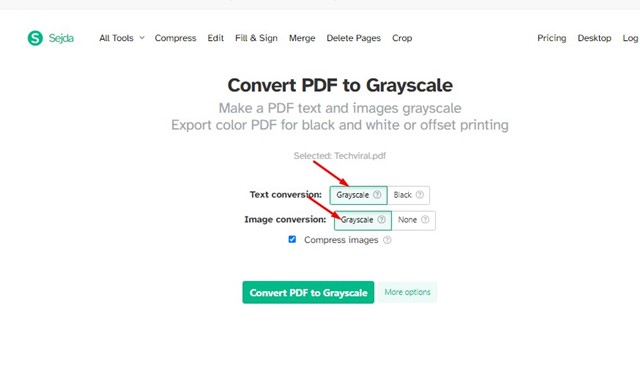
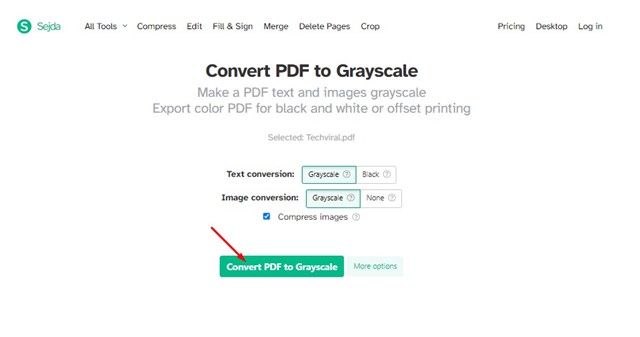
4. Click the Convert PDF to Grayscale.
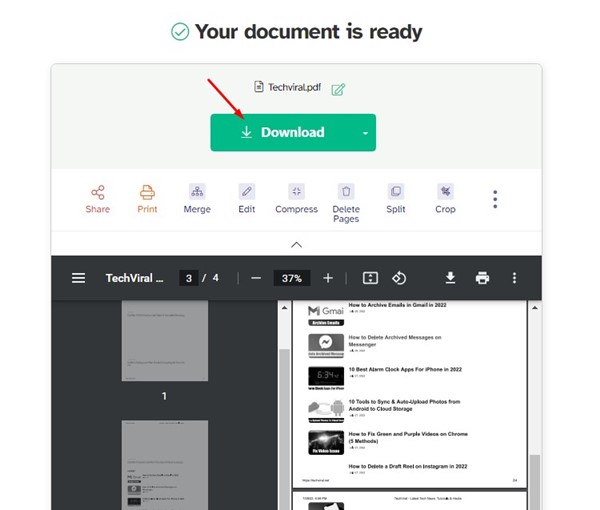
5. Download the PDF file.
3. Convert Color PDF to Black & White Online Free
Another free tool lets you convert your PDF to black and white. The tool that we will use in this method is avePDF. This is a web-based tool that can convert your color PDF file to grayscale.
1. Visit this webpage from your favorite web browser.

2. Click the Choose File button and select the color PDF file.

3. Enable all options and click the Convert to Grayscale button.

4. Click on the Download button to download the converted PDF file to your PC.

Also Read: How to Convert a Google Doc to PDF
These are the best methods to convert colored PDFs to black and white in Windows. Let us know in the comments below if you know other ways to make a PDF in black and white on Windows.
The post How to Convert Color PDF to Black & White in Windows appeared first on TechViral.

News reported through various sources and compiled with AI. This is automatically generated news content from known, popular, and reliable sources available at the time of publication.
We do not take any responsibility for, nor make any representations regarding, the accuracy, completeness, credibility, or
reliability of the content.
In case of any discrepancy, error, or copyright claim, we will promptly review and remove the content in question where appropriate.
We do not claim ownership of third-party content and assume no responsibility or liability whatsoever for any information contained herein. The credit, links and images are kept intact as an honest gesture, are property of its respective owners.