

 Editor's Desk




If you have VLC Media Player, you can use it to cut your videos easily. Here’s how to cut videos using VLC Media Player on Windows.
1. Open VLC Media Player on your PC.
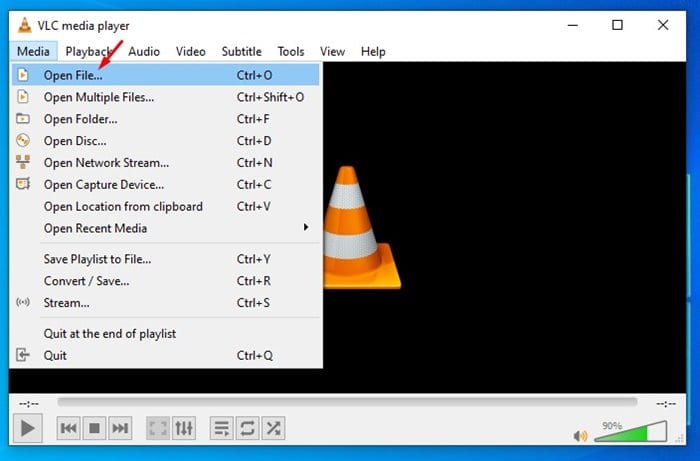
2. Open the media file that you want to cut.
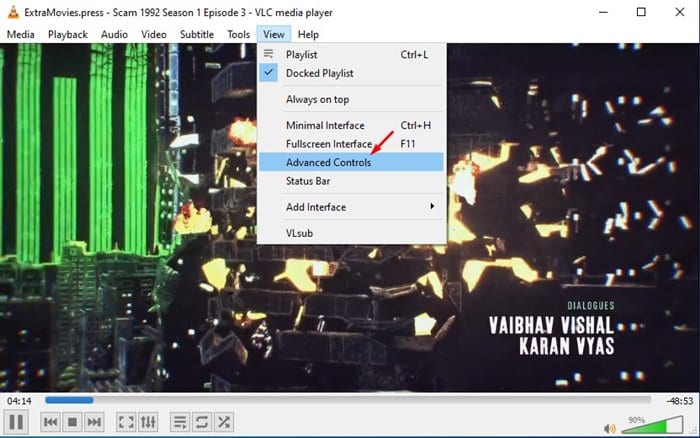
3. Click on the View tab and select Advanced Controls.
4. You need to use the Recording feature to record the video segment you want to cut.
5. Pause the video where you want to cut, and select the starting point by moving the slider. Click Record to start recording.
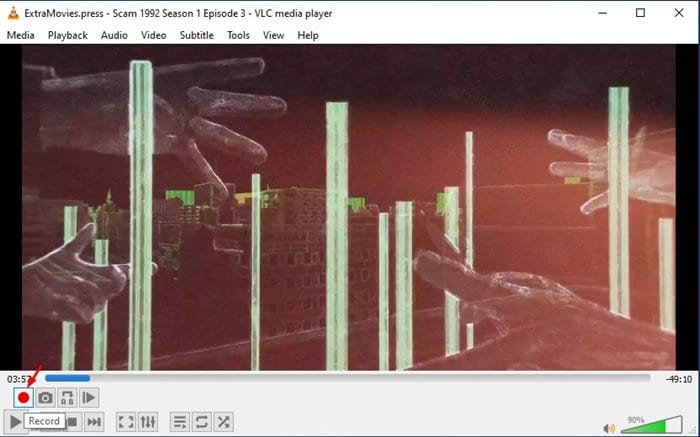
6. Click on the Recording button again to stop cutting.
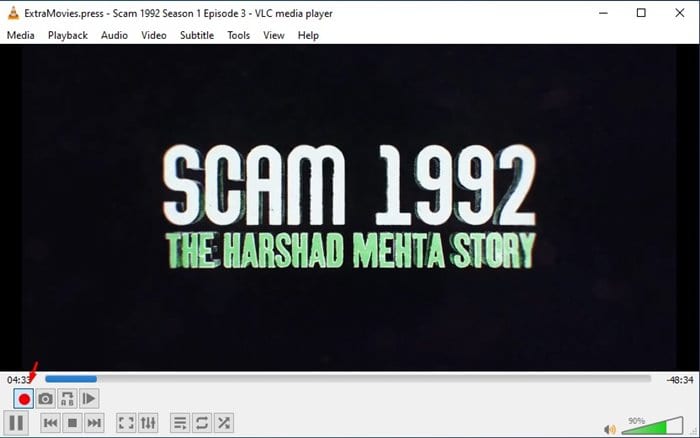
7. The clip will be automatically saved to the Videos folder.

Also Read: How to Stream Video and Audio Using VLC Media Player
Other Ways to Cut Videos on Windows?
VLC Media Player is not considered a video editor. Instead, it’s a media player app with added features. For the best video editing experience, use video editing tools for Windows.
You can even use online video editors without watermarks to cut parts of your videos. These editors work in a web browser and don’t require software installation.
This article explains how to easily cut videos using the VLC Media Player app. If you need further help trimming videos with VLC Media Player, let us know in the comments below.
The post How to Cut Videos Using VLC Media Player in Windows appeared first on TechViral.

News reported through various sources and compiled with AI. This is automatically generated news content from known, popular, and reliable sources available at the time of publication.
We do not take any responsibility for, nor make any representations regarding, the accuracy, completeness, credibility, or
reliability of the content.
In case of any discrepancy, error, or copyright claim, we will promptly review and remove the content in question where appropriate.
We do not claim ownership of third-party content and assume no responsibility or liability whatsoever for any information contained herein. The credit, links and images are kept intact as an honest gesture, are property of its respective owners.