

 Editor's Desk




If you use Google Chrome, you may want to set it as your default browser on your Windows 11 PC. Setting Chrome as your default web browser in Windows 11 is easy; here’s how.
1. Set Chrome as the Default Browser in Windows 11 via Settings
We will use the Windows 11 Settings app to set Chrome as the default web browser.
1. Click on the Windows 11 Start button and select Settings.
2. Switch to Apps.
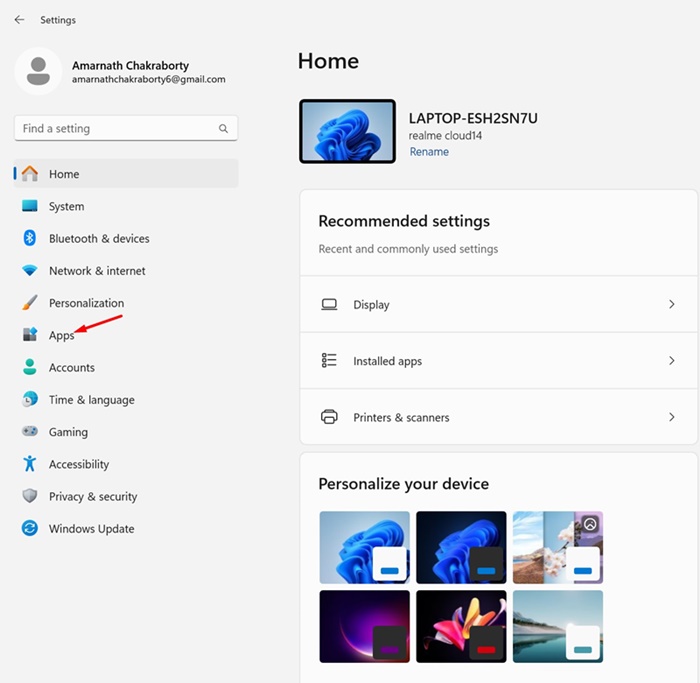
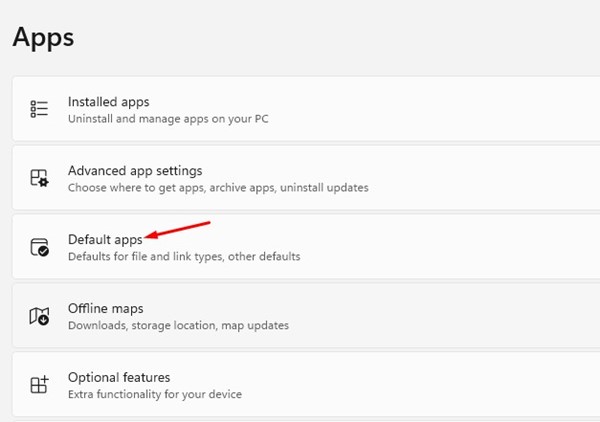
3. Click Default apps.
4. Find and click Google Chrome.
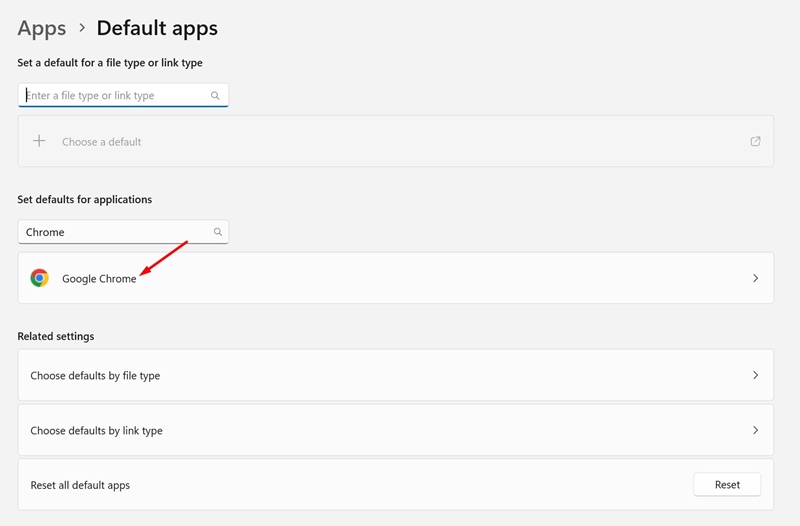
5. Click Set as Default.
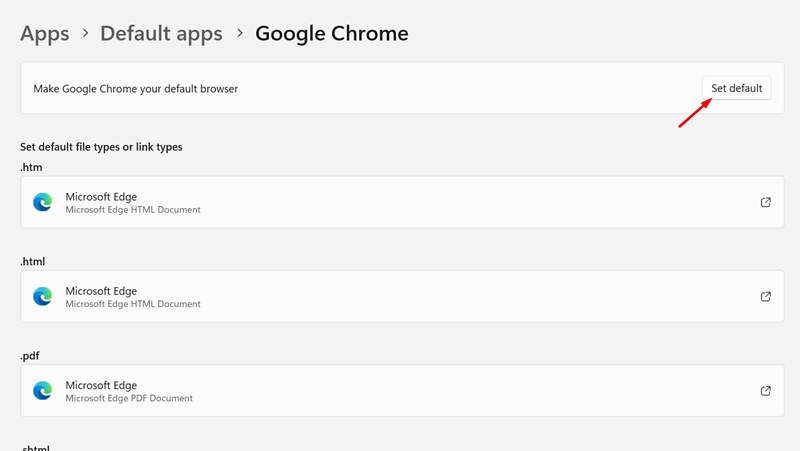
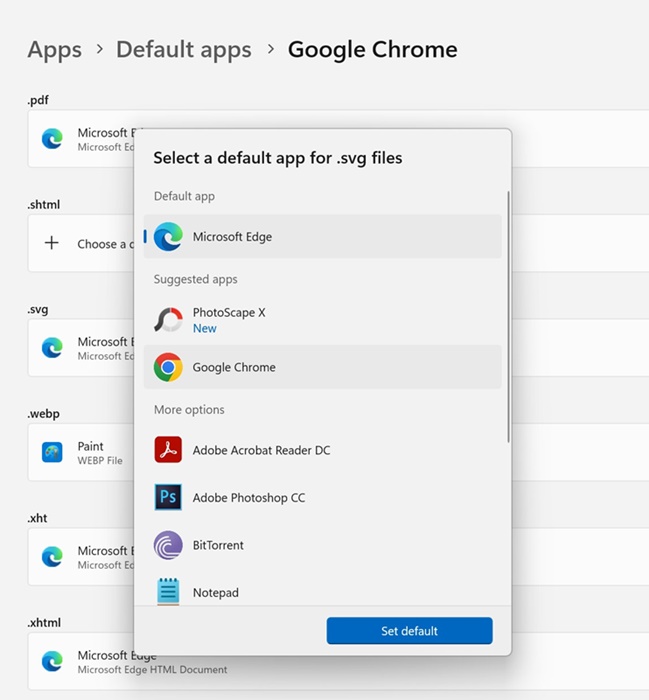
6. From the same screen, you can set Google Chrome as the default app for other file types like .PDF, .svg, etc.
2. Set Chrome as the Default Browser via Chrome Settings
If you are not comfortable making system-level changes, you can use Chrome settings to set it as the default browser.
1. Launch the Google Chrome browser on your Windows 11 PC.
2. When the browser opens, click the three dots.
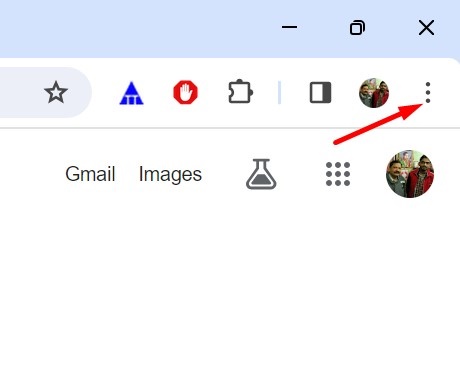
3. Select Settings.
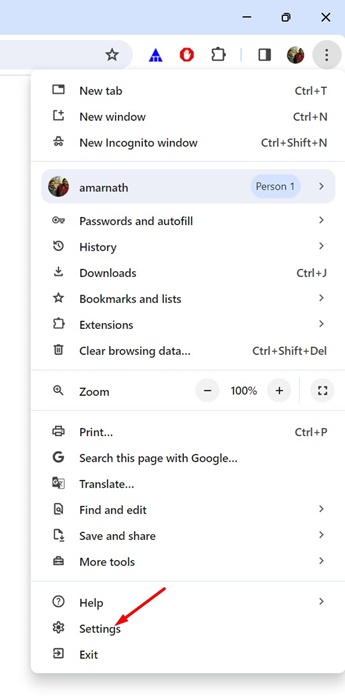
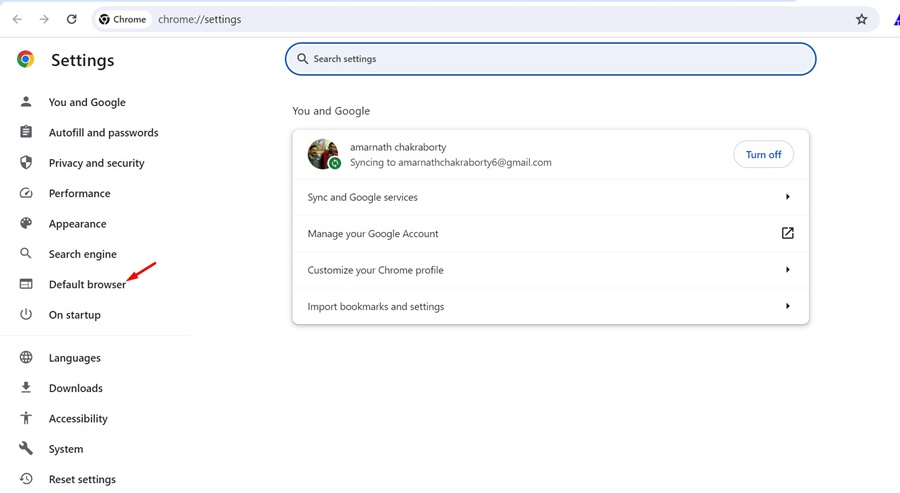
4. Switch to the Default browser.
5. Click the Make Default button beside the Default browser.
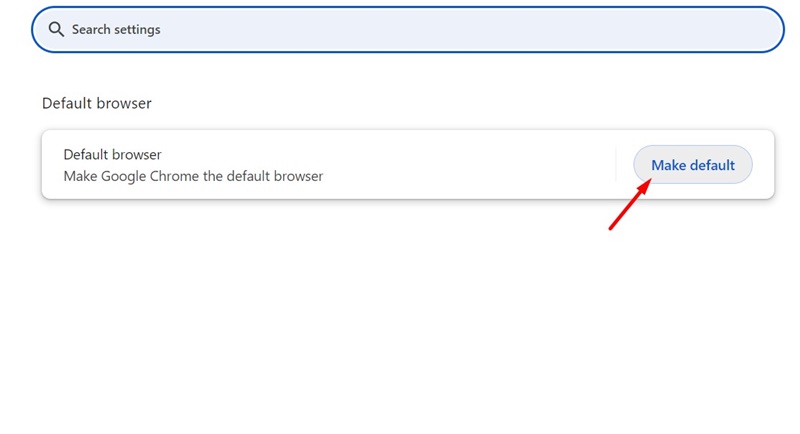
6. This will open the Settings app on your Windows 11.
7. Select Google Chrome.
8. Click on Set Default in the top right corner.
These are the steps to take to set Google Chrome as the default browser on your Windows 11 computer/laptop.
Since Google Chrome offers better features than any desktop web browser, setting it as the default browser makes sense. You can follow our shared steps to set Google Chrome as the default browser in Windows 11.
The post How to Set Chrome as Default Web Browser in Windows 11 appeared first on TechViral.

News reported through various sources and compiled with AI. This is automatically generated news content from known, popular, and reliable sources available at the time of publication.
We do not take any responsibility for, nor make any representations regarding, the accuracy, completeness, credibility, or
reliability of the content.
In case of any discrepancy, error, or copyright claim, we will promptly review and remove the content in question where appropriate.
We do not claim ownership of third-party content and assume no responsibility or liability whatsoever for any information contained herein. The credit, links and images are kept intact as an honest gesture, are property of its respective owners.