


 Editor's Desk





Eye Tracking on iPhone is an accessibility feature that allows users to select content on the screen without using their fingers. The feature is supposed to help users with physical disabilities control their iPhones with their eyes. Here’s how you can turn on iPhone Eye Tracking.
How to Turn On iPhone Eye Tracking on iPhone?
1. Launch the Settings app.
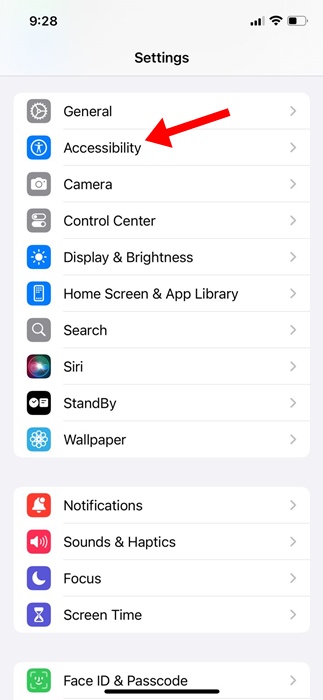
2. Tap on Accessibility.
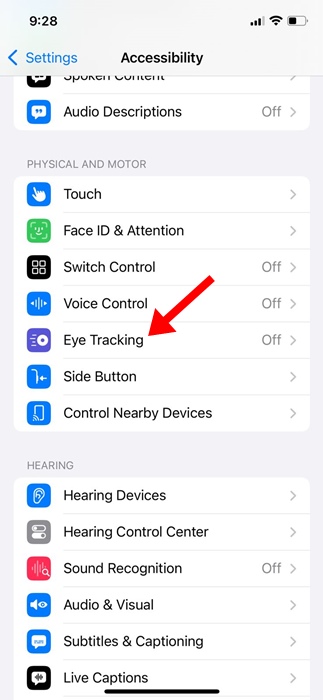
3. Find and tap on Eye Tracking.
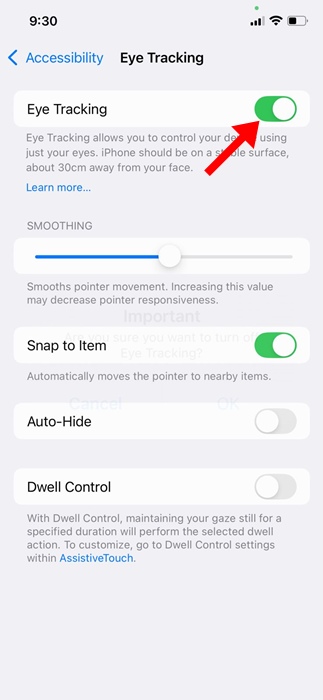
4. Turn on the toggle next to Eye Tracking.
5. You will reach the calibration screen. Follow the dot with your eye as it moves around the screen.

6. On the AssistiveTouch Menu Customization prompt, tap Yes.
This should enable the Eye Tracking feature on your iPhone. A white outline around a button or app icon indicates that the feature is enabled and ready to track your eye movement. This is how to turn on eye tracking on an iPhone. Eye tracking is a great accessibility feature, but sometimes it just doesn’t work.
If your Eye Tracking is not responsive, try turning the feature off and on, and hold your phone 1.5 feet away while using it.
The post How to Turn On iPhone Eye Tracking appeared first on TechViral.

News reported through various sources and compiled with AI. This is automatically generated news content from known, popular, and reliable sources available at the time of publication.
We do not take any responsibility for, nor make any representations regarding, the accuracy, completeness, credibility, or
reliability of the content.
In case of any discrepancy, error, or copyright claim, we will promptly review and remove the content in question where appropriate.
We do not claim ownership of third-party content and assume no responsibility or liability whatsoever for any information contained herein. The credit, links and images are kept intact as an honest gesture, are property of its respective owners.